Step-by-step instructions for activating a new Datablaze device on your existing account using the LiveTrack app.
Follow the instructions below to activate a Datablaze device on your existing Datablaze Account.
If you do not have a Datablaze account, view the Quick Start Guide for your device model.


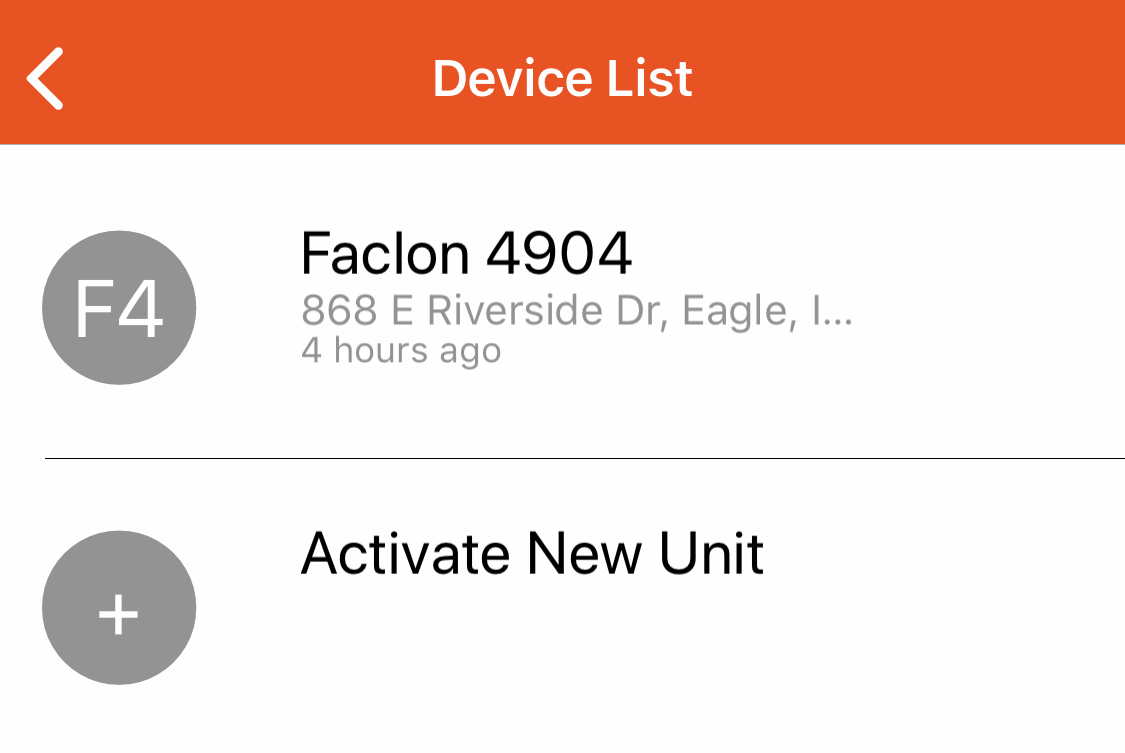
If you have only one active device, or if you have multiple devices but have not setup any device groups you will see the following screen. Tap the "Activate New Unit" button.
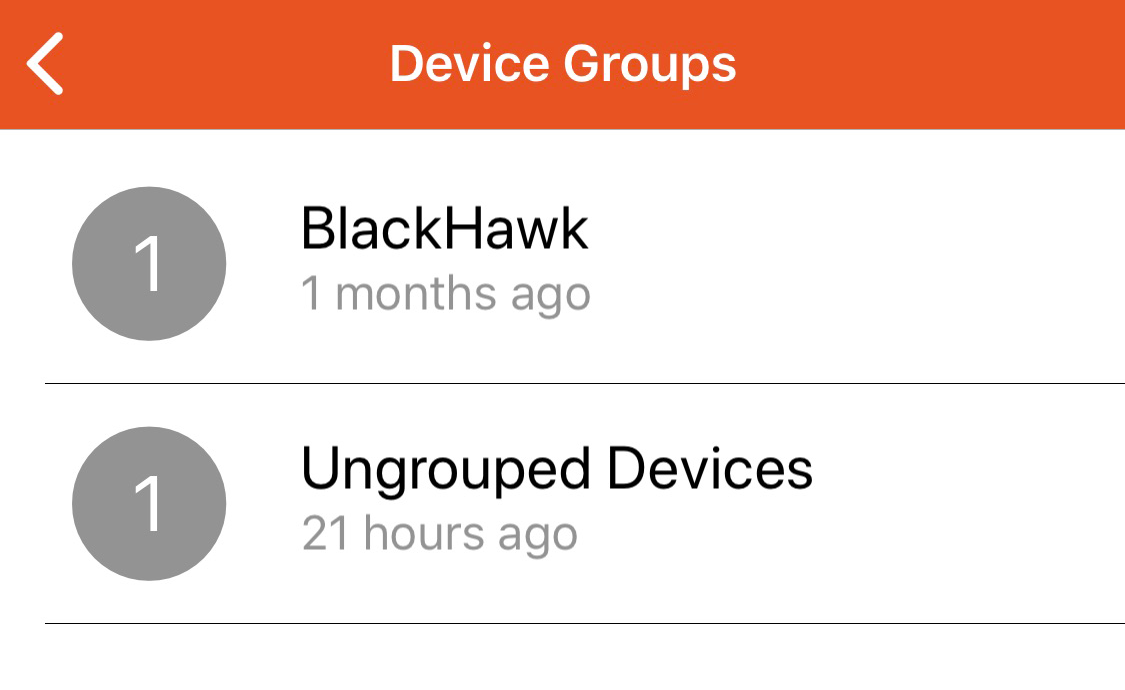
If you have multiple device groups, you will see the following screen. Tap the Group name you would like to activate your new device under. On the next screen, tap "Activate New Unit".
Was this article helpful?
That’s Great!
Thank you for your feedback
Sorry! We couldn't be helpful
Thank you for your feedback
Feedback sent
We appreciate your effort and will try to fix the article